Click the account icon
At the top right of any page on hyalogic.com, click the person icon (next to search and the cart).


A simple step-by-step guide to help you navigate your account, manage your information, and make the most of your Hyalogic customer portal.
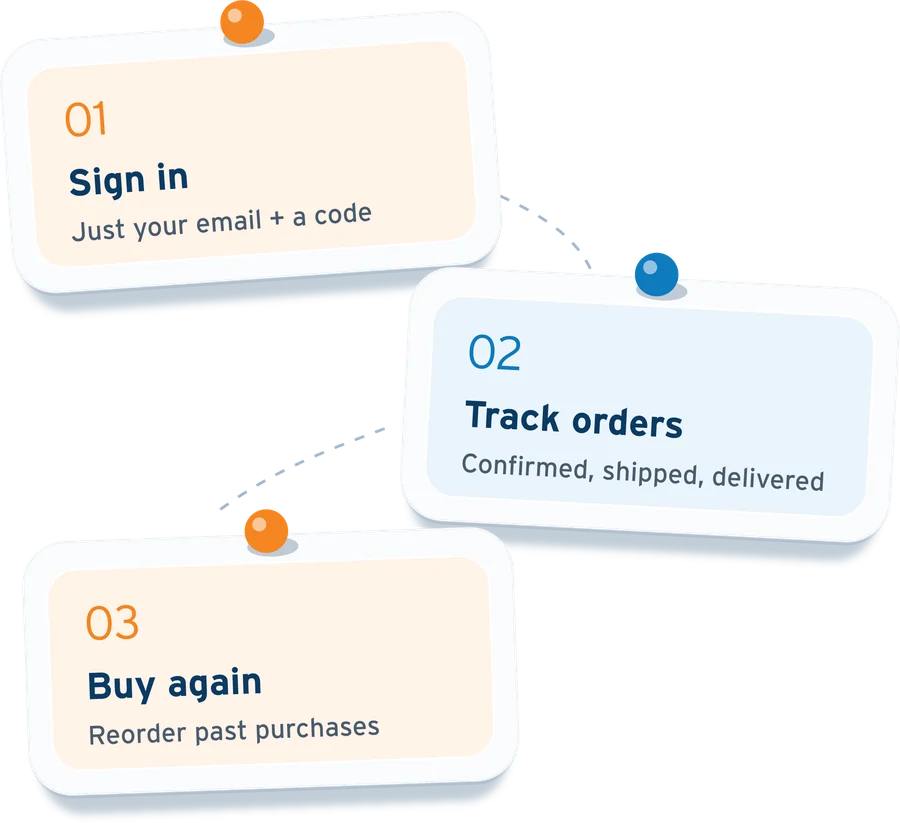
A quick walkthrough of signing in, tracking your orders and reordering. The written steps below cover the same thing.
At the top right of any page on hyalogic.com, click the person icon (next to search and the cart).
You’ll see a short notice: we’ve updated our login process and passwords are no longer needed. Click Proceed to Login.
 No password to remember — you’ll sign in with your email and a one-time code.

Enter your email address and press the arrow. You can also choose Continue with Shop if you use the Shop app.

We’ll email you a 6-digit code. Enter it to sign in.
 Can’t find it? Check your spam or promotions folder.
 Typed the wrong email? Click Change.

Once you’re signed in, everything linked to your email address is in one place. Use the menu on the left to switch between sections.

Select Profile to see your name, email and saved addresses.

Confirmed means we’ve received your order and payment, and we’re getting it ready to ship.

Once your order has been shipped, the carrier and tracking number will be updated under your Orders page.

Once your parcel has been delivered, the date will be reflected in the status (e.g. “Delivered Nov 9”).

Want the same products again? Click Buy again on the order card or the order page. All items from that order go straight into your cart, where you can change quantities, remove items or add a note before you check out.



If you have any questions or need assistance with your Hyalogic account, our team is here to help.